radiopod
RadioPod - Internet Radio for your Secure and Private Solid Pod








RadioPod plays internet radio. It is a simple, private alternative to apps like Transistor: find stations in the community-run Radio-Browser database, group them into playlists, and listen — on your phone, in the car through Android Auto, or at your desk. Your station library and your playlists are stored encrypted in your own personal online data store (Pod), so nobody — not even the server administrator — can see what you listen to. The app is supported by Togaware and implemented by Graham Williams using Flutter’s SolidUI package for cross platform development.
Solid Pods are a new approach to handling your personal data on the World Wide Web and is the latest innovation from the inventor of the WWW, Sir Tim Berners-Lee. Obtain a Pod for yourself on any Solid server and link it to your app. You do not need a Solid Pod to use this app in local only mode.
We make this project available for free so if you appreciate the app then please show some ❤️ and tap on the star at GitHub to support our work. See the AU Solid Community showcase for many more apps using the Solid ecosystem.
Features
- Search the community-run Radio-Browser database of internet radio stations, by station name or by genre.
- Save the stations you like into a library that is stored encrypted on your Pod.
- Playlists group your stations. They are also the folders you browse in the car.
- Import and export M3U and PLS playlist files, the open formats every other radio player reads, so your collection is never locked in.
- Android Auto: browse your playlists and stations on the head unit and play them without touching the phone.
- Background playback with lock screen, notification and headset controls.
- Runs on Android, iOS, GNU/Linux, macOS, Windows and the web.
Privacy
RadioPod is built so that there is very little to say here, and what there is can be checked in the source.
- Your stations and playlists are encrypted before they leave your device and written to your own Solid Pod. The server holding them, and its administrators, cannot read them.
- The only third party contacted is Radio-Browser, and only when
you use Search. It is sent your search text and an app name. It is
not sent your WebID, your Pod address, or your library. The relevant
code is in
lib/services/radio_browser.dart. - Radio-Browser offers a click-reporting endpoint that apps call to feed its popularity ranking. RadioPod does not call it. Nothing about what you listen to leaves the device.
- Playing a station connects directly to that station’s stream, so the broadcaster sees a connection from your network — as it would from any radio player or web browser. RadioPod adds nothing to that request.
- There is no analytics, no crash reporting and no account beyond your Solid Pod.
One honest caveat. Android Auto starts the app on its own, before any Pod login can happen, and will not wait for one. So an unencrypted copy of your station names and stream addresses is kept in the app’s private storage on the device for the car to browse. It holds no more than a playlist file would, never your security key or WebID, and never leaves the device. Settings has a button to clear it.
Android Auto
Android Auto sees RadioPod as a media app through a
MediaBrowserService, provided by the
audio_service package. The
browse tree the head unit shows is two levels deep, which is what
Android’s media app guidelines ask for:
RadioPod
├── <each of your playlists>
│   └── the stations in it, in playlist order
└── All Stations
    └── every saved station, alphabetically
Choosing a station sets the surrounding folder as the queue, so Next and Previous on the steering wheel move through the list that was actually being browsed. Live radio has no timeline, so RadioPod offers Stop rather than Pause and no seek controls.
To test on a phone without a car, install Android Auto for Phone Screens (or use the Desktop Head Unit from the Android SDK), and turn on Unknown sources in Android Auto’s developer settings so a debug build is listed.
Installation
The latest version of the app can be run online at radiopod.solidcommunity.au with no installation required. Or else download and install for your platform from the Solid Community AU repository or your platform store:
- Web solidcommunity;
- Android apk or aab;
- GNU/Linux deb or snap store or snap or zip;
- macOS dmg or zip;
- Windows exe or zip.
GNU/Linux prerequisite
Desktop playback on GNU/Linux and Windows goes through libmpv, since just_audio has no native implementation there. On Debian and Ubuntu:
sudo apt install libmpv-dev mpv
Snap
The snap bundles libmpv, so the prerequisite above does not apply to
it. It does need one interface connected by hand, because
password-manager-service is not connected automatically:
sudo snap connect radiopod:password-manager-service
Without that the app starts but a Pod login stops with Cannot access secure storage, since the security key is held in your keyring and strict confinement blocks the app from reaching it. Tapping Continue to run without a Pod is unaffected.
Playlist formats
RadioPod reads and writes the two formats internet radio has always used.
M3U (and the UTF-8 .m3u8 variant) pairs a name with a URL:
#EXTM3U
#EXTINF:-1,ABC Classic
https://live-radio01.mediahubaustralia.com/2FMW/mp3/
PLS is an INI file with numbered entries:
[playlist]
File1=https://live-radio01.mediahubaustralia.com/2FMW/mp3/
Title1=ABC Classic
Length1=-1
NumberOfEntries=1
Version=2
On import the file’s own name becomes the playlist name, and a station whose stream address you already have is reused rather than duplicated, so re-importing a file grows the playlist but not the library. A plain M3U that is nothing but a list of URLs is read too — the station’s host name stands in for a missing title.
Development
flutter pub get
flutter analyze
flutter test
flutter run -d linux
The app is built from the same template as the other apps in the
suite. lib/main.dart, lib/app.dart and lib/app_scaffold.dart
carry no app-specific logic beyond configuration.
Screens
Here we walk through RadioPod on GNU/Linux. Every screen looks the same on the other desktops. For mobile devices the app will be laid out for the narrower window as required. As with all solidui apps, the screen size is remebered on restarting the app.
Starting up
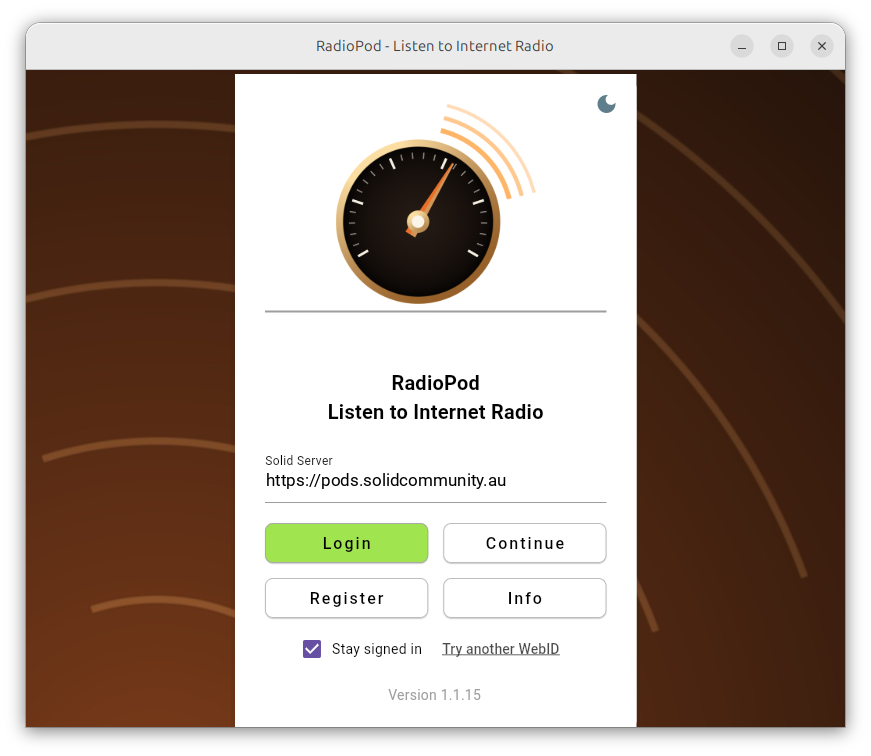
You can choose your Solid server of choice (where you will host your data) and Login, or you can tap Continue to use RadioPod without a Solid server and so simply save your station lists locally. The Continue option is very much a supported way to run the app — your stations and playlists are then kept on the device and nothing is sent anywhere. You do not need a Solid Pod to use this app in local only mode. You can log in later to a Solid server and copy what you have collected up to your Pod.
Finding a station

You can search the community-run Radio-Browser database by station name or by genre. The screen explains what leaves the device, because this is the one place in RadioPod where any data does leave the app to another service. What is shared is your search text and the name of the app, and nothing else.

Results carry the station’s own logo, country, codec and bitrate. Radio-Browser holds a record per submission, so one station can be listed many times over; RadioPod collapses those to one row per stream address. A tick marks a station already in your library, and the plus adds a new one. Tapping any row plays that station straight away, so you can listen before deciding to keep it.
Your stations
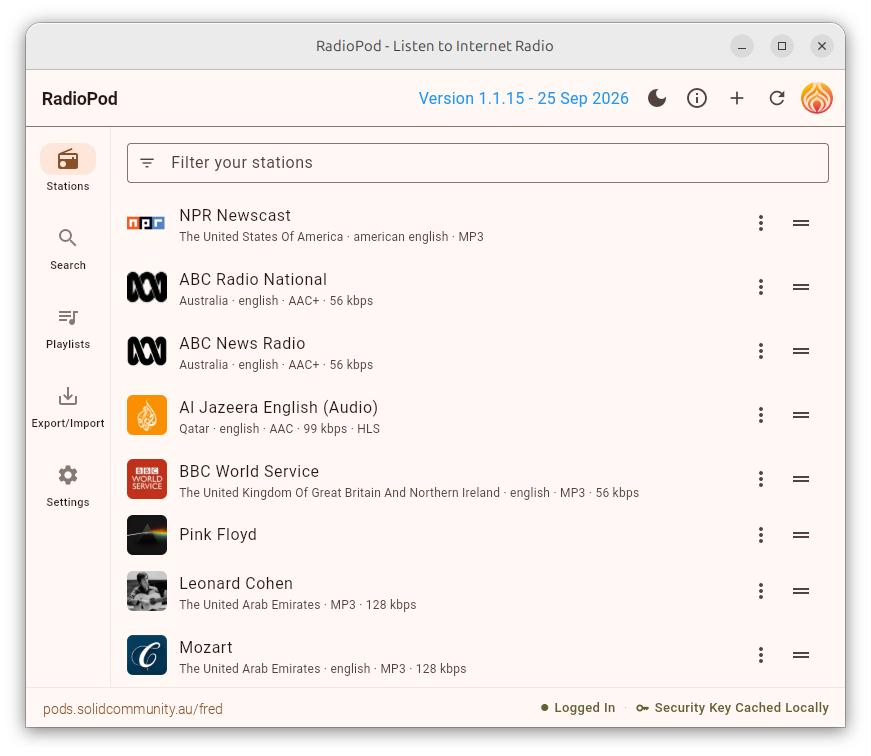
The library of stations is presented in your order rather than alphabetical. You can drag the handle on the right to arrange it, and that order is what an export writes and what Android Auto lists in the car. The filter box narrows a long list.
The status bar along the bottom includes a link to your Solid server and whether you are logged in and if the security key (used to encrypt data in your Pod) is unlocked.
Play a Station

Tap a row/station to play it. The station on air is simply the highlighted row. Its logo becomes a stop button, and its second line carries the song title. Here the song title is Pink Floyd’s The Trial. This replaces the country and bitrate that are shown for an idle station. Tap it again to stop, and the logo comes back.
Many streams do not have a track announcement so the station’s own details remain on display when it is playing.
Station options
Every station row has a ⋮ menu for operations on the station entry.

Properties allows you to rename a station, give it a logo, and say what should happen when its stream ends.
Radio-Browser names sometimes contain transmitter details and other information so you can rename the stations to suit yourself. The default station logo can be downloaded from the address the station advertises, or you can choose a logo for yourself. Here we have chasen our own logo. When there is no default logo the button is greyed out. Either way, the logo is stored with the station information locally or in your Pod.
The option to reconnect when the stream ends applies when, for example, a continuously streaming station’s connection drops, rather than a news bulletin ends. For the former case you may like to reconnect so the station remains on air. The default is to move to the next station, so that once the NPR news bulletin finishes we move on to the next listed station.

Add to playlist, when selected, will list your playlists and provide an opportunity to select the playlists this station belongs. A station can sit in multiple playlists.
Playlists
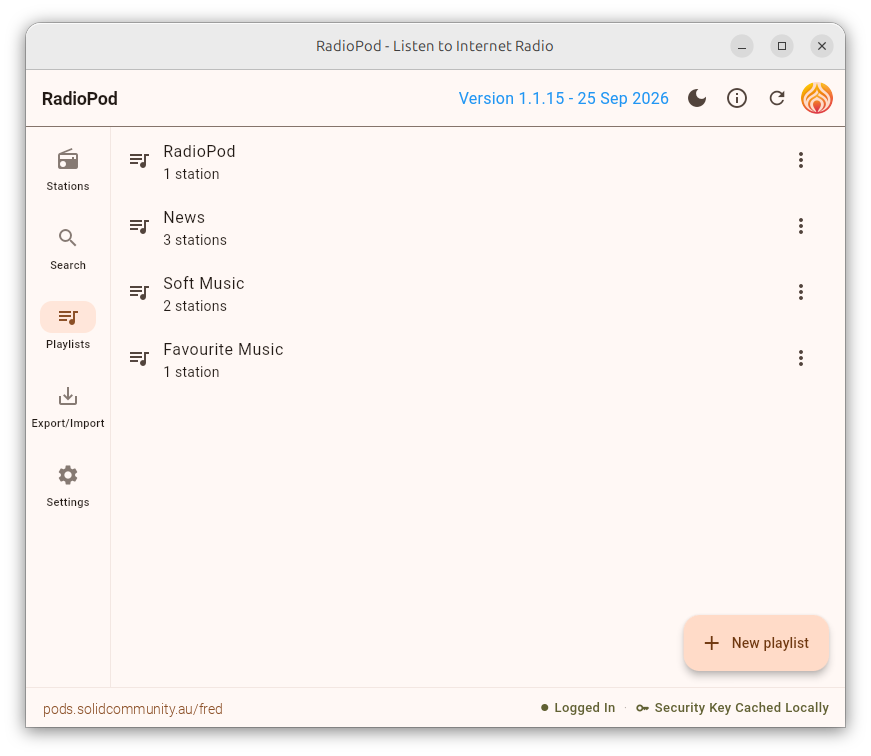
You can group stations into playlists however you like. A playlist holds references, not copies, so a station renamed once is renamed everywhere, and the same station can sit in as many playlists as you please. These are also the folders you browse on a car’s head unit.
Import and export

RadioPod reads and writes M3U, M3U8 and PLS. These are the plain text formats internet radio uses and other players can read and export these. The Import adds the stations to your library and groups them into a playlist named after the file, reusing any stream address you already have rather than duplicating it. The Export saves the whole library or a single playlist.
Settings
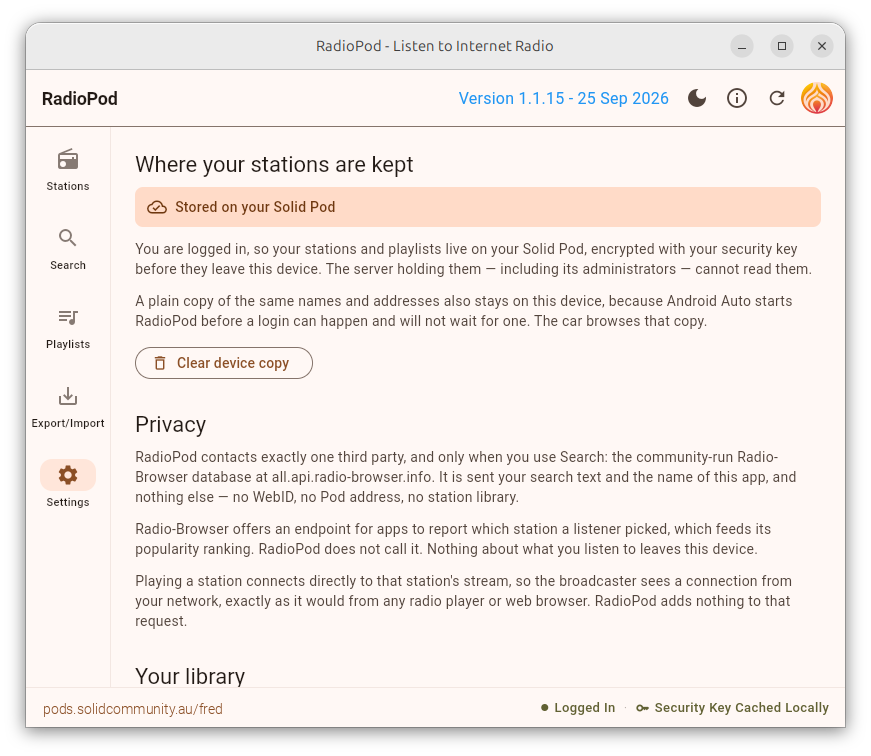
Settings notes where your data is kept and what that means, including the caveat that an unencrypted copy of station names and stream addresses stays on the device so Android Auto can browse it before any login can happen. There is a button to clear it. The privacy summary is the same one as above in the app.
Licence
Copyright (C) 2026, Togaware Pty Ltd.
Licensed under the GNU General Public License, Version 3.