timepod
TimePod - Privacy-First Fullscreen Clock






TimePod shows a large clock, analog, digital or both, with the weekday and date. Tap Fullscreen to fill the screen with the clock and keep the screen awake. Leave it running on a spare phone, tablet or monitor as a bedside or desk clock. The fullscreen clock drifts a little every minute so an OLED screen does not burn in. Under Display choose what the clock shows: the analog face, the digits, the date, the seconds, and 24 or 12 hour time.
The app needs no login and sends nothing anywhere. Logging in to your own personal online data store (Pod) is optional, ready for features that keep your data private and encrypted on your own Pod. Pods are an innovation from the inventor of the World Wide Web, Sir Tim Berners-Lee. For more information visit the Solid Project. You do not need a Solid Pod to use this app.
TimePod is based on Fullscreen Clock 2.2 by Georg Sieber, an Android app that is also free software under the GNU General Public License version 3.
The app is developed by Togaware utilising Claude Code using our solidui template for the Flutter framework for a cross platform deployment.
We make this project available for free so if you appreciate the app then please show some ❤️ and tap on the star at GitHub to support our work. See the AU Solid Community showcase for our apps using the Solid ecosystem.
Installation
See the Install Guide for installation instructions for any platform.
Screens
Here we walk through TimePod on various platforms and use cases. Every screen looks the same across the devices from phones, tablets, desktops and in a browser. As with all solidui apps, the screen size is remembered on restarting the app.
To try it without any installation visit TimePod Web in your browser.
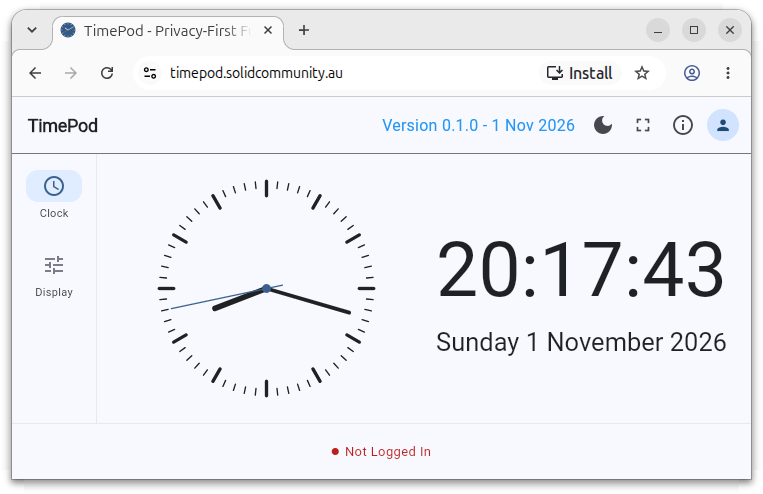
The Family Room Clock
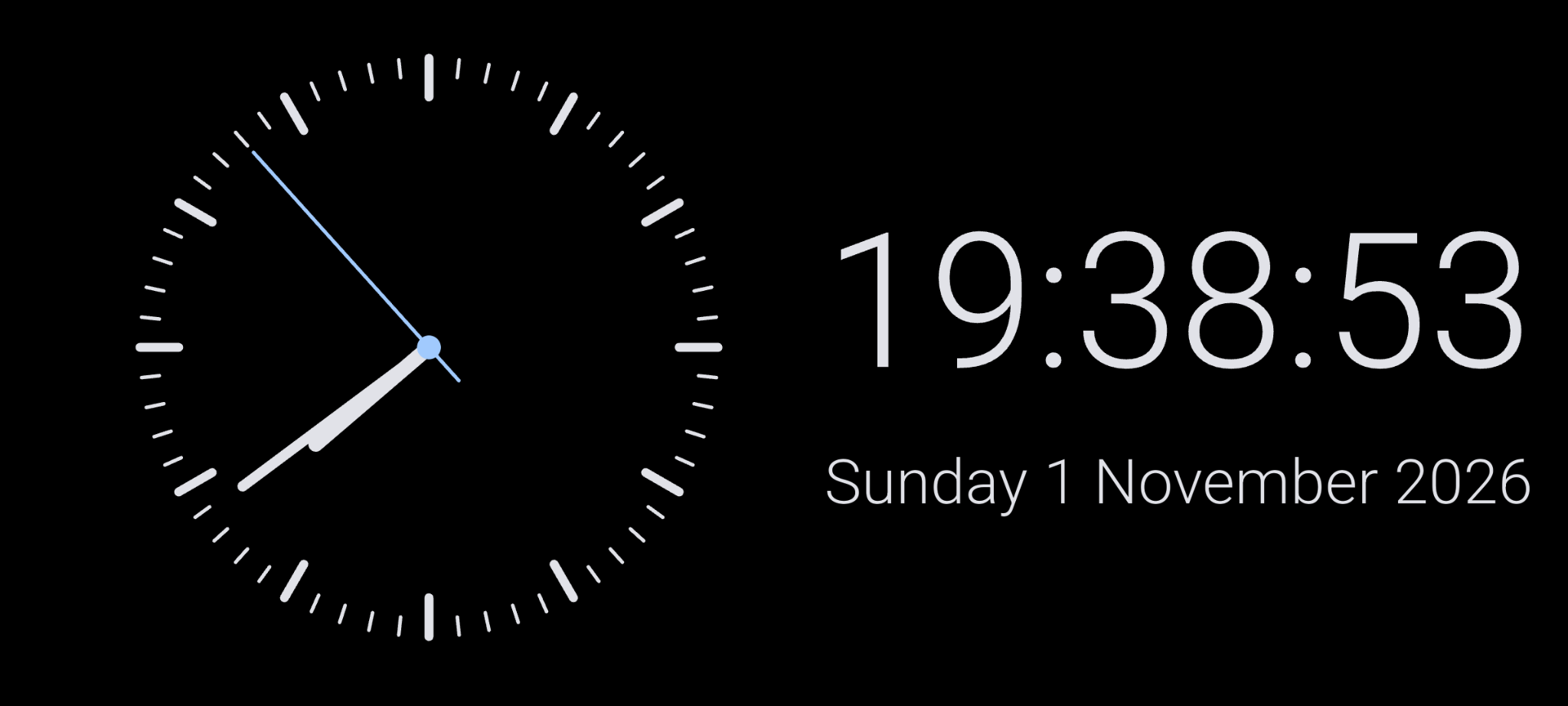
The app can be installed on a retired Android phone and sit in the family room as the family clock. We get into this mode with a tap of the full screen icon in the top toolbar to display the clock over the whole screen, while turning off the screen sleep mode. Tap in the window to restore to the original app.
The Desktop Clock
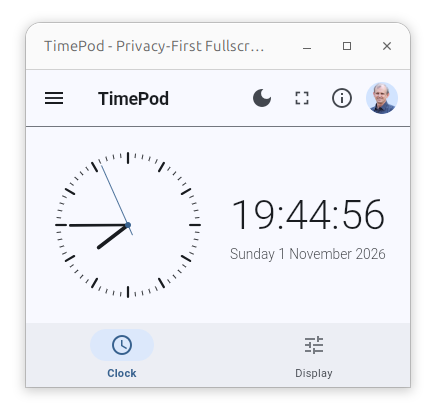
The app can sit inconspicuously in a small window on your computer’s
desktop. Dark mode and light mode are supported. Tap the full screen
icon in the top toolbar to display the clock over the whole screen,
while turning off the screen sleep mode. Tap the ESC key or click in
the window to restore to the original window.
On a technical note we see here the standard solidui scaffold that houses the TimePod app including the top toolbar and the bottom app buttons.
Transparent Desktop Clock
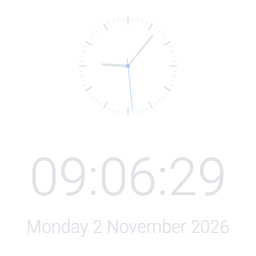
The desktop transparent mode allows the time to sit by itself on the desktop.
Under Display choose whether the desktop clock opens the size of the app window, and where on the screen it opens: where it was last left, a corner or the centre. On a Wayland desktop TimePod runs through XWayland, as conky does, since GNOME on Wayland will not let an app place its own window.
Roadmap
TimePod is built using the SolidUI framework. This framework utilises open standard Solid Servers to store any data within your personal online datastore (Pods). At this time (November 2026) the Pod functionality is not utilised no data is collected by the app nor shared with anyone. I do plan to support Pods eventually whre calendar events can be securely and privately stored and shared, if you choose, with other TimePod users. Some of the functionality below will depend on supporting Solid Pods.
-
Dim the display overnight
-
Configurable font and colour.
-
Add an alarm
-
Add a calendar function to record event dates and times. A popup will appear at that date/time with the correspending event details. The popup remains until dismissed.
-
Allow individual events to be share with other Pods. A family might all be running TimePod to have the reminders popup for everyone.
-
Access RoloPod data within the user’s Pod to catch birthdays, wedding anniversaries, etc, and then popup a reminder in TimePod the day before.